Quotify Academy · First Pass Take Off

Turn the first pass into a price you can stand behind

A complete, screenshot-led walkthrough of the Fast Pass workspace: check the evidence, correct the estimate, control risk and issue the right document.

01
Control the quote

Orientate yourself before changing a number

Business value: keeps the commercial state, tender workflow and client-seen version aligned, so a draft cannot be mistaken for an issued quote.
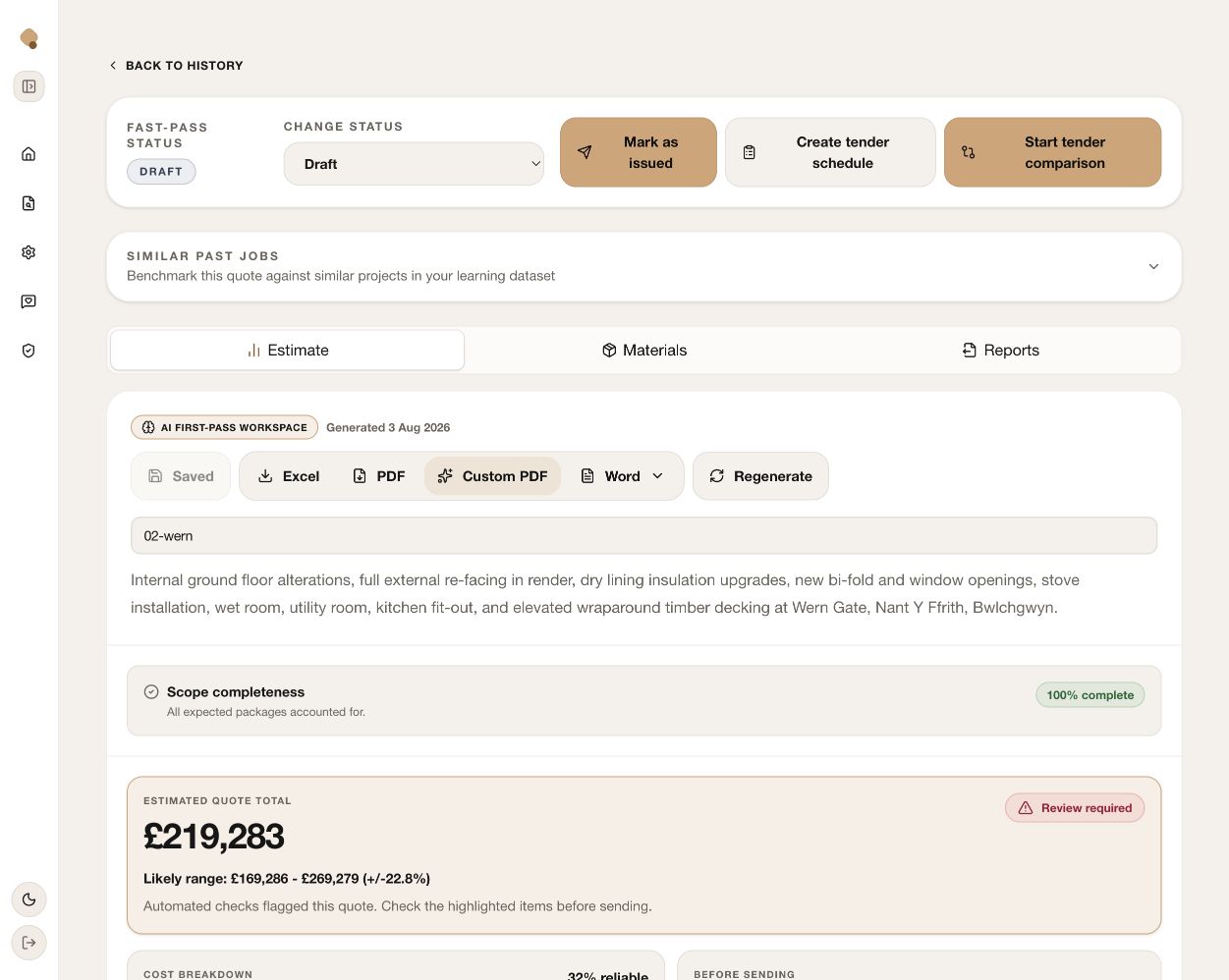
Quotify Fast Pass workspace showing status, workflow actions, tabs, exports, project summary and estimated quote total 1 2 3 4 5 6 7 8
The top of the workspace is your control panel. Numbers match the guidance below.
  1. Status and Change status

    Move the quote through Draft, Internal review, Ready to send, Approved, Won, Lost or Cancelled. Use status as the team’s single source of truth; do not promote a quote while review warnings remain.

  2. Mark as issued

    Designates the current version as the one the client saw. Use it immediately after sending the checked document so later edits do not blur the audit trail.

  3. Create tender schedule

    Reuses the agreed scope as a structured tender schedule, avoiding manual re-keying when you move into procurement.

  4. Start tender comparison

    Moves the scope into bid comparison so supplier or subcontractor returns can be compared on the same basis.

  5. Similar past jobs

    Benchmarks this quote against comparable work in your learning dataset. Open it when you want a reasonableness check, not as a substitute for checking the current drawings.

  6. Estimate, Materials and Reports

    These are the three working views. Review them in this order: price and risk first, material evidence second, output last.

  7. Saved, exports and Regenerate

    Saved confirms the current edits are stored. Excel, PDF, Custom PDF and Word create working snapshots. Regenerate only when the source or scope has materially changed, then repeat the review because AI output can change.

  8. Project summary, completeness and total

    Confirm the project name and scope description match the job. “100% complete” means expected packages were found; it does not mean every rate is reliable. Read the estimate together with its likely range and “Review required” warning.
02
Validate the basis

Check the evidence and commercial model

Business value: exposes where the price is measured, benchmarked or assumed before margin and terms turn it into a client commitment.

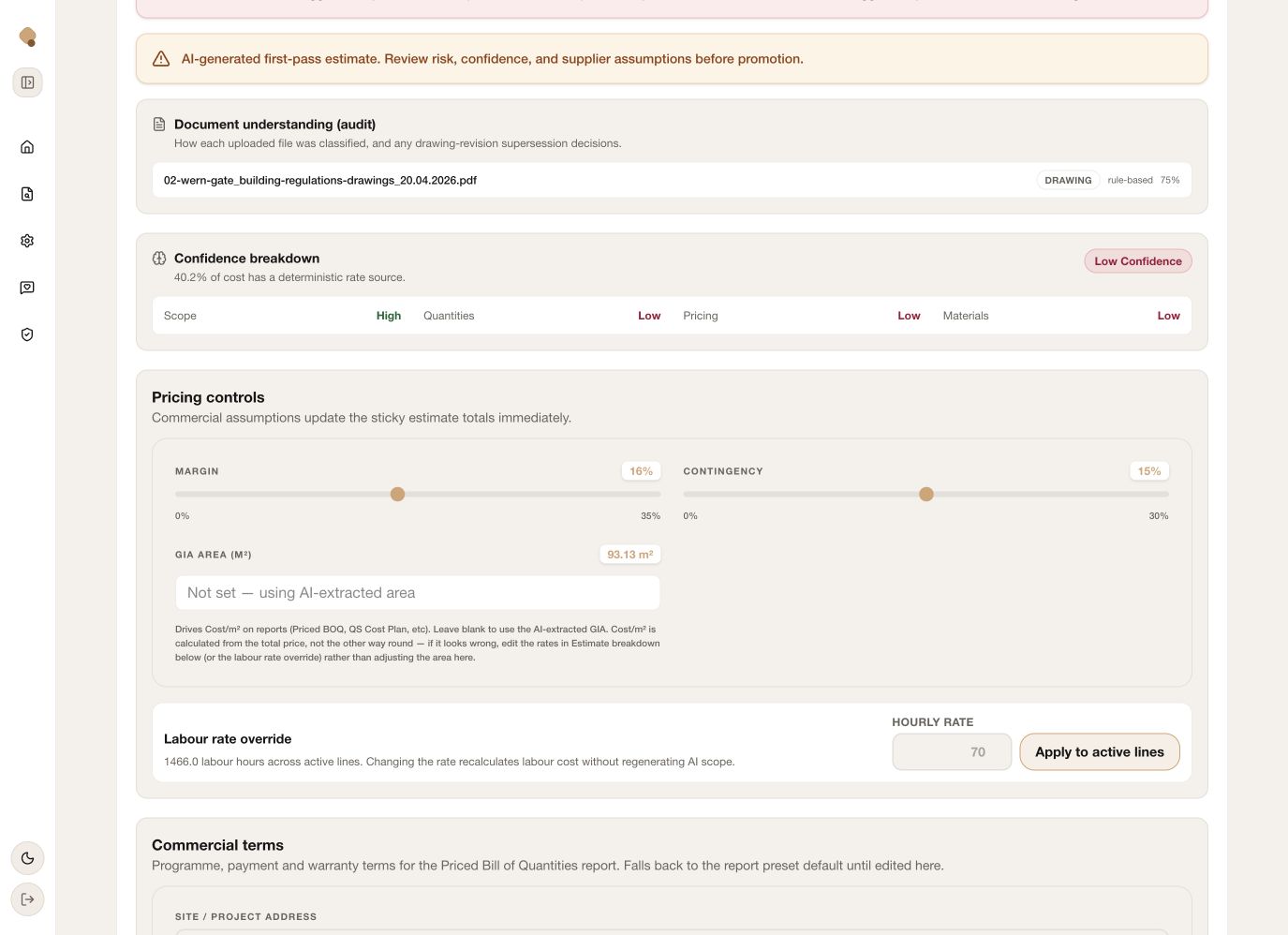
Document audit, confidence breakdown, pricing controls, labour override and commercial terms in Quotify 1 2 3 4 5
Evidence quality and commercial controls sit together because both affect how defensible the final price is.
  1. Document understanding (audit)

    Shows every source file, its classification, method and confidence. Confirm the correct drawing set was read and that a superseded revision has not become the pricing basis.

  2. Confidence breakdown

    Separates confidence in scope, quantities, pricing and materials. In this example the scope is high confidence but quantities, pricing and materials are low, so manual measurement and supplier-rate checks are the priority.

  3. Margin, contingency and GIA

    Adjust margin and contingency deliberately; totals update immediately. GIA drives cost-per-m² reporting only—correct rates and quantities if the cost looks wrong instead of changing area to force a target.

  4. Labour rate override

    Applies one hourly rate across active estimate lines without regenerating the AI scope. Use it when your agreed labour rate differs from the draft, then review high-hour packages for distortion.

  5. Commercial terms

    These values feed the Priced Bill of Quantities. Complete the address, programme, validity, payment, retention, defects, design development, VAT, valuation cycle and change-control wording before report generation.

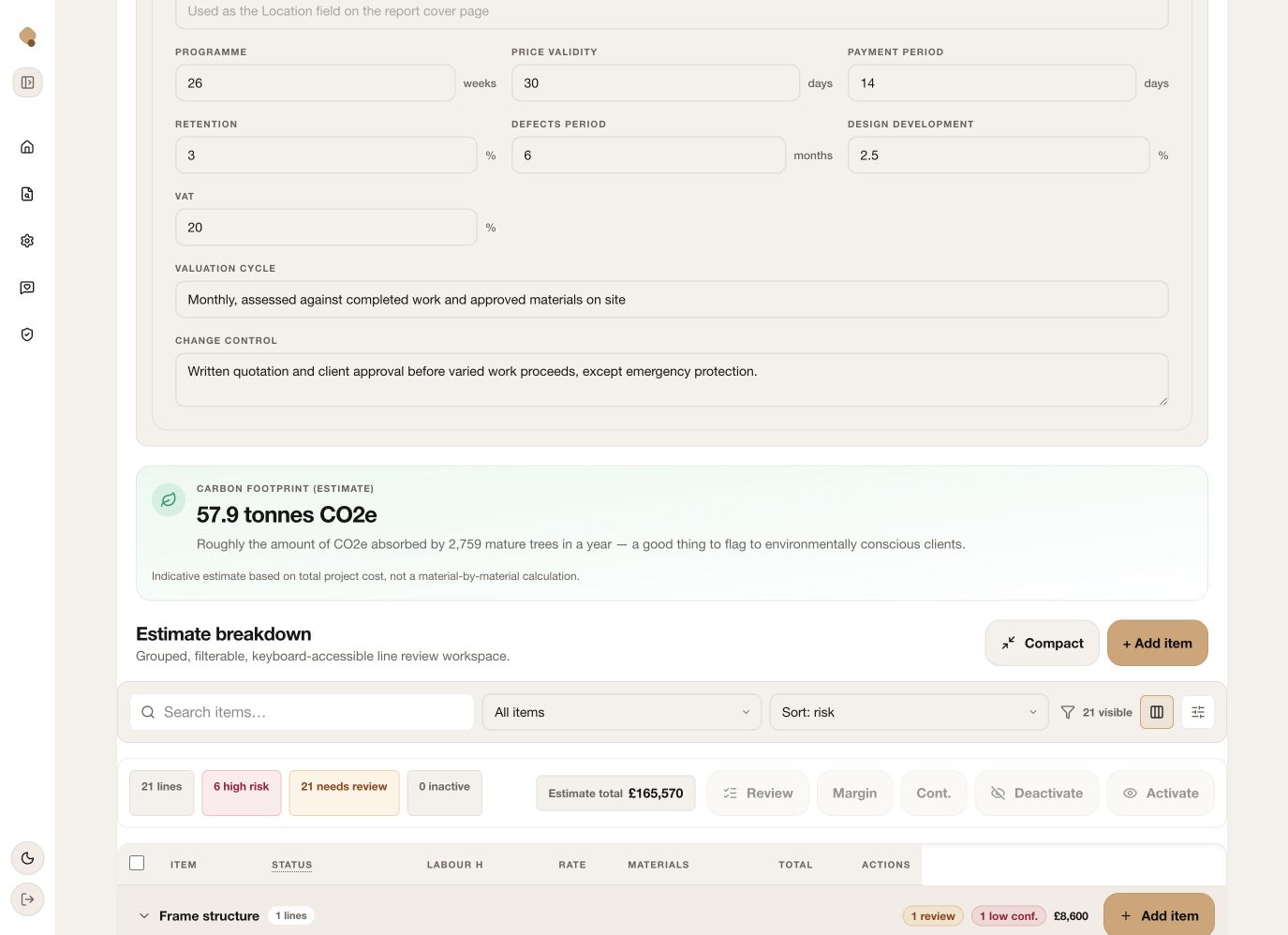
Commercial terms, carbon estimate and estimate breakdown controls in Quotify 6 7 8
Complete the commercial fields, understand the indicative carbon figure, then use the review tools to focus the line-item check.
  1. Detailed terms

    Enter realistic periods and clear valuation/change-control wording. The value is fewer disputes over programme, payment and variations after the quote is accepted.

  2. Carbon footprint estimate

    Use this as an indicative conversation starter for environmentally conscious clients. It is cost-based, not a product-level carbon assessment, so do not present it as a verified carbon calculation.

  3. Estimate breakdown controls

    Search, filter by review/confidence/value/exclusion, sort by risk or value, switch density and add items. The counters tell you how much review remains and the bulk toolbar acts on selected lines.

03
Review the estimate

Correct the lines, then make uncertainty explicit

Business value: converts a plausible AI draft into an estimator-owned price with traceable labour, material, risk and scope decisions.

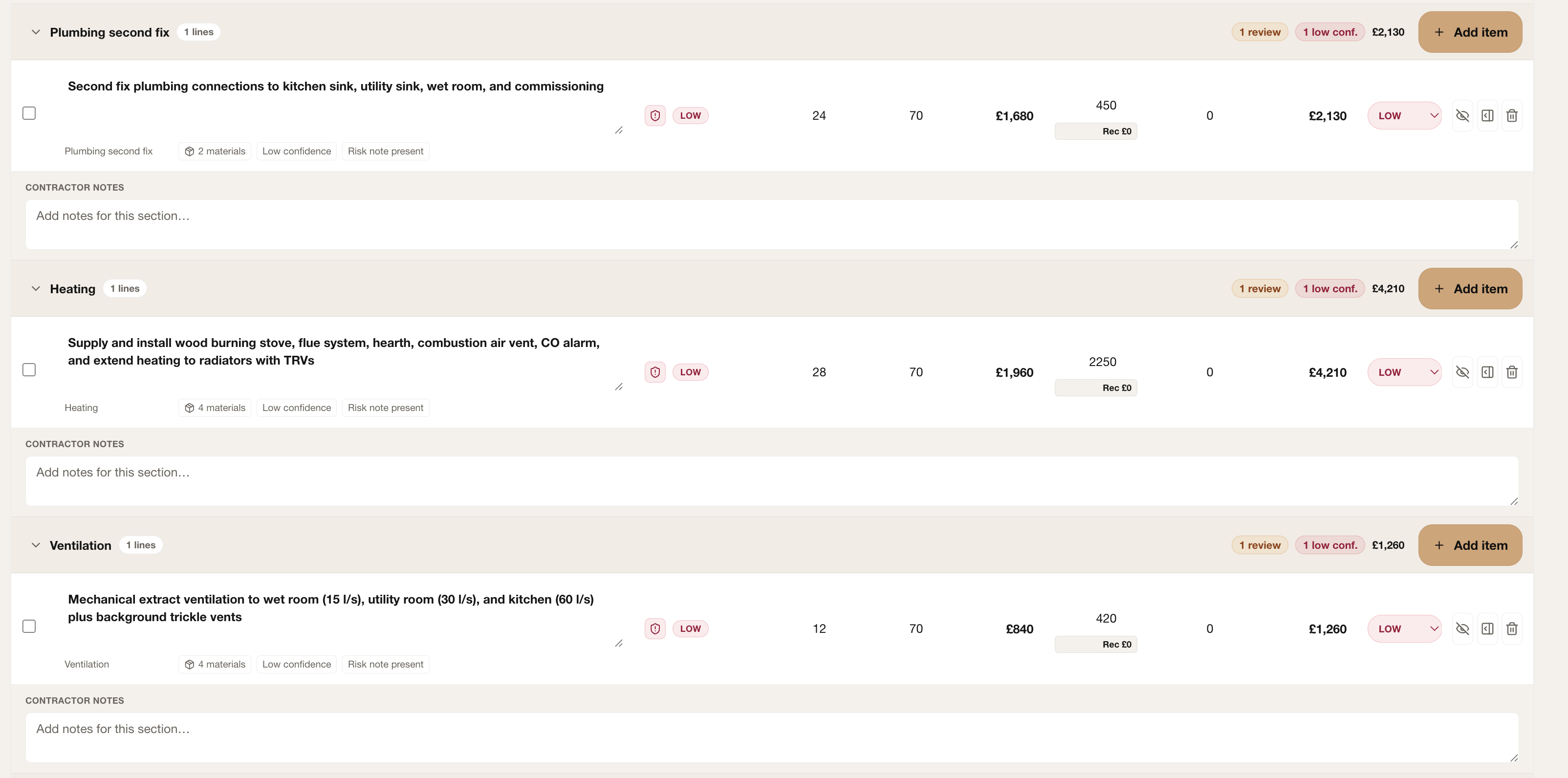
Quotify estimate table showing plumbing, heating and ventilation categories with editable costs, confidence and contractor notes 1 2 3 4 5 6
Work category by category, checking each scope line, its cost makeup and the notes that explain your decision.
  1. Category group and Add item

    Collapse or expand each trade, see its review count, confidence warning and subtotal, or add omitted scope directly to that category.

  2. Scope, category and materials

    Edit the description until it says exactly what is included. Confirm the category and open the material count when the product breakdown needs checking.

  3. Review and confidence signals

    Attention, low-confidence and risk-note markers tell you where estimator judgement is still required. They are prompts, not approvals.

  4. Hours, rate and cost makeup

    Check labour hours, hourly rate, labour value, materials, plant and the calculated total. Replace draft allowances with current evidence.

  5. Confidence and line actions

    Set the final confidence, deactivate scope that must remain in the audit trail, open full line details, or delete an item that is genuinely erroneous.

  6. Contractor notes

    Record the supplier basis, measurement decision or scope caveat below the trade so the next reviewer understands why the price was accepted.

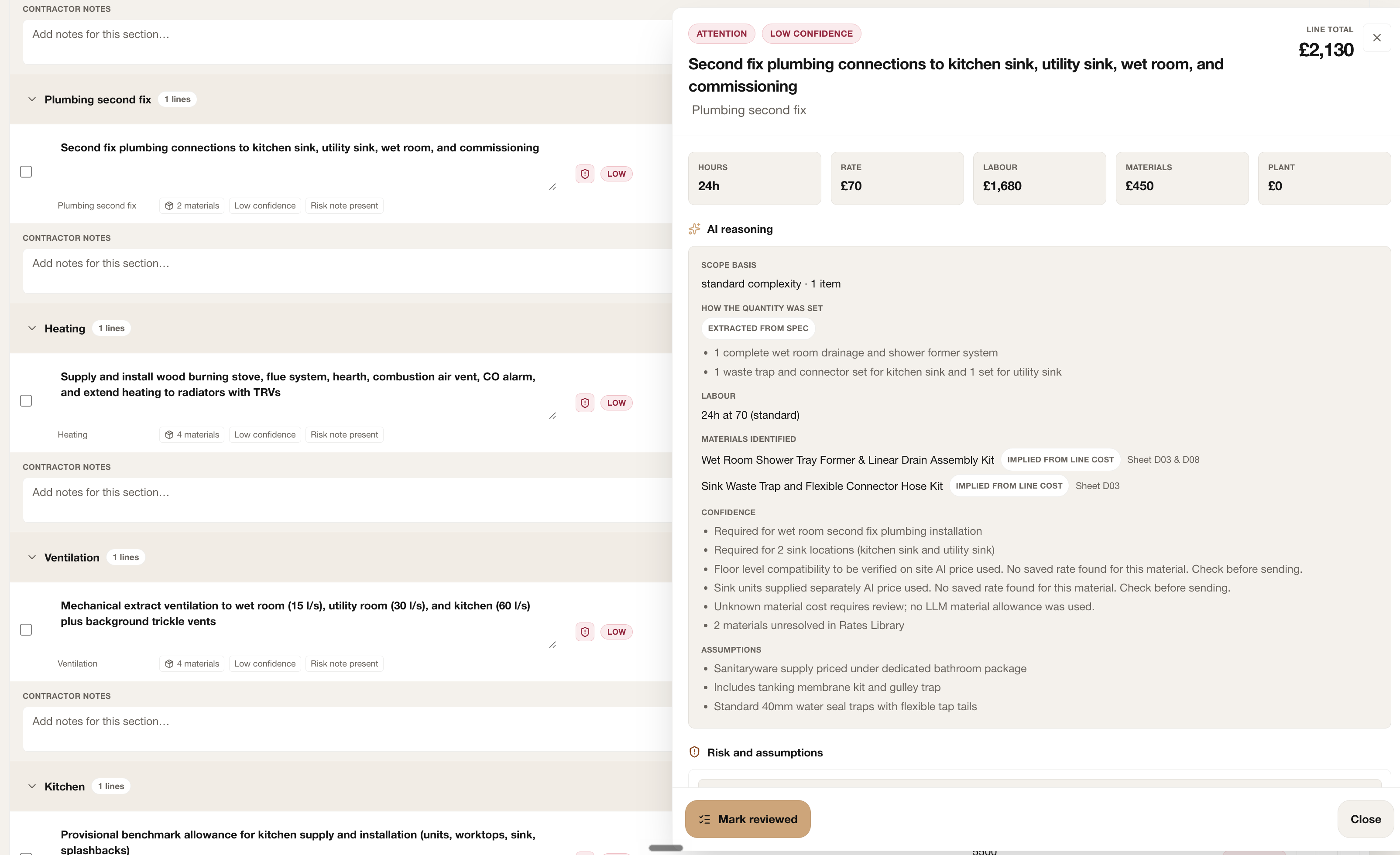
Expanded Quotify estimate line showing cost cards, AI reasoning, source quantities, materials, confidence and assumptions 7 8 9 10 11
Open a line—including preliminaries—to see how Quotify built the allowance and what still needs human review.
  1. Line identity and total

    The side panel keeps the selected scope, attention state, confidence and total visible while you inspect the evidence.

  2. Cost cards

    Confirm hours, rate, labour, materials and plant reconcile to the line total before accepting the price.

  3. AI reasoning

    Review the scope basis, extracted quantities, labour basis, identified materials and confidence notes. Check each statement against the source documents.

  4. Risk and assumptions

    Scroll through the panel to find the uncertainty Quotify carried into the line and decide whether it needs a rate change, clarification or report wording.

  5. Mark reviewed

    Use this only after the quantities, rates, products and assumptions have been checked. It records an estimator decision, not merely that the panel was opened.

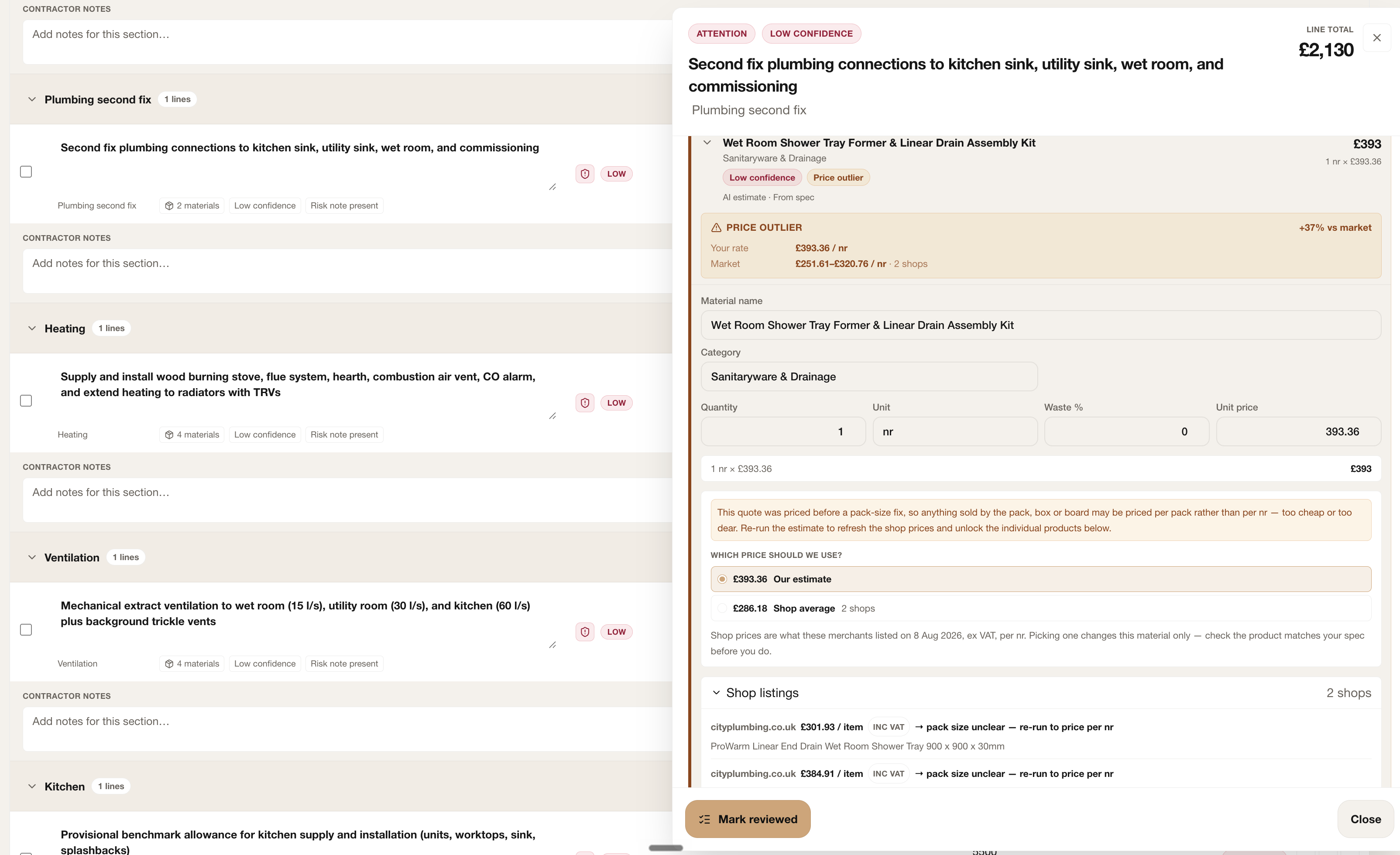
Expanded Quotify material pricing review showing a live market comparison, editable inputs and merchant listings 12 13 14 15 16
Scroll further to compare the estimate with current market evidence and select the rate that matches the specification.
  1. Material pricing review

    Expand the identified material to see its confidence, pricing source and current extended value.

  2. Price-outlier warning

    Quotify highlights the percentage difference between your rate and the available market range so unusual prices receive attention.

  3. Editable pricing inputs

    Confirm material name, category, quantity, unit, waste and unit price. Unit or pack-size mismatches can make a plausible price materially wrong.

  4. Choose the evidence

    Keep the estimate or select the current shop average only after confirming the merchant product matches the specification.

  5. Live shop listings

    Use merchant listings as fresh evidence, checking VAT, pack size and date. Choosing a live price updates this material only; complete the review before marking the line reviewed.

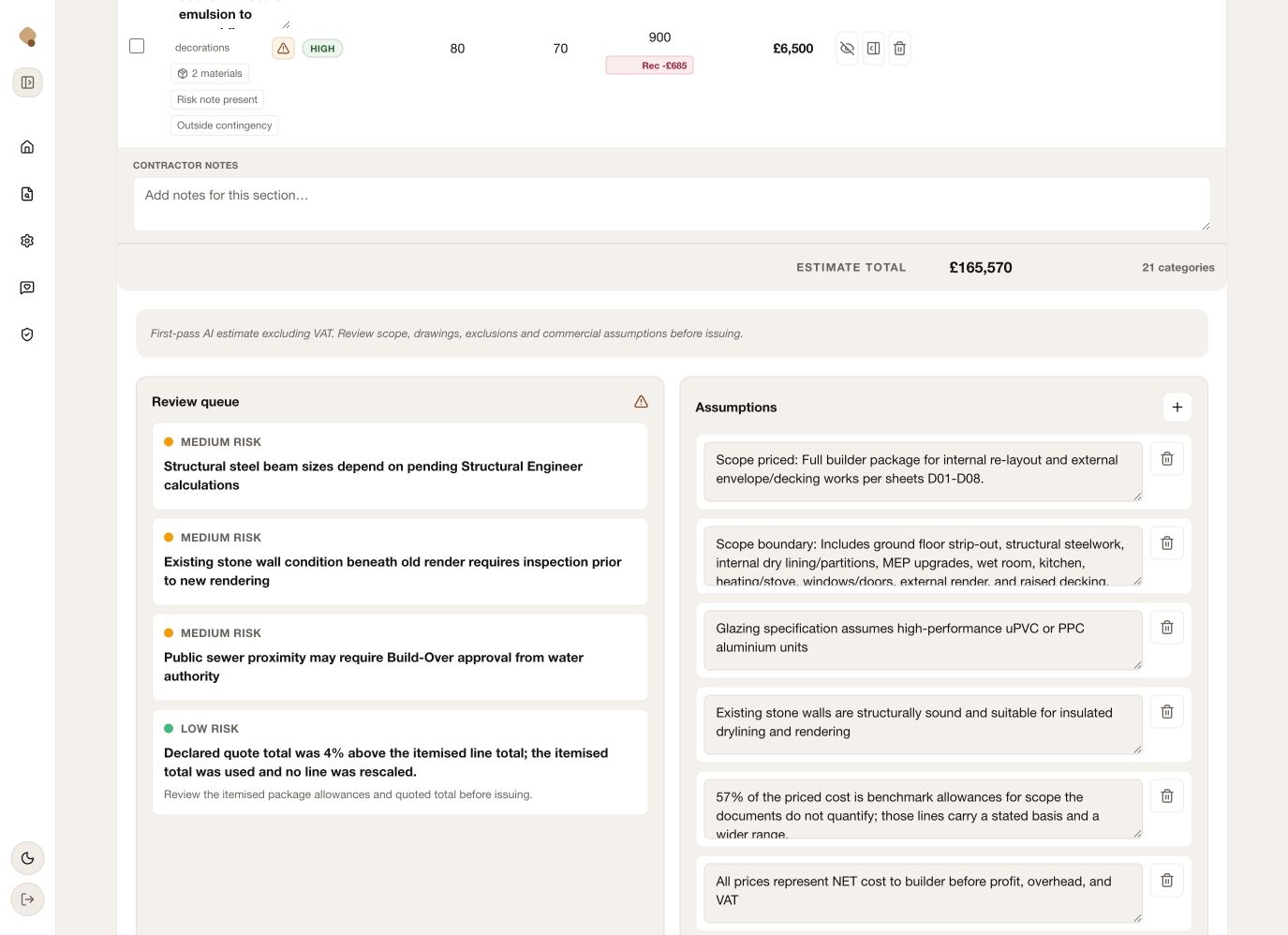
Quotify review queue beside editable quote assumptions 17 18
Use the review queue to find exposure; use assumptions to state how the price was built.
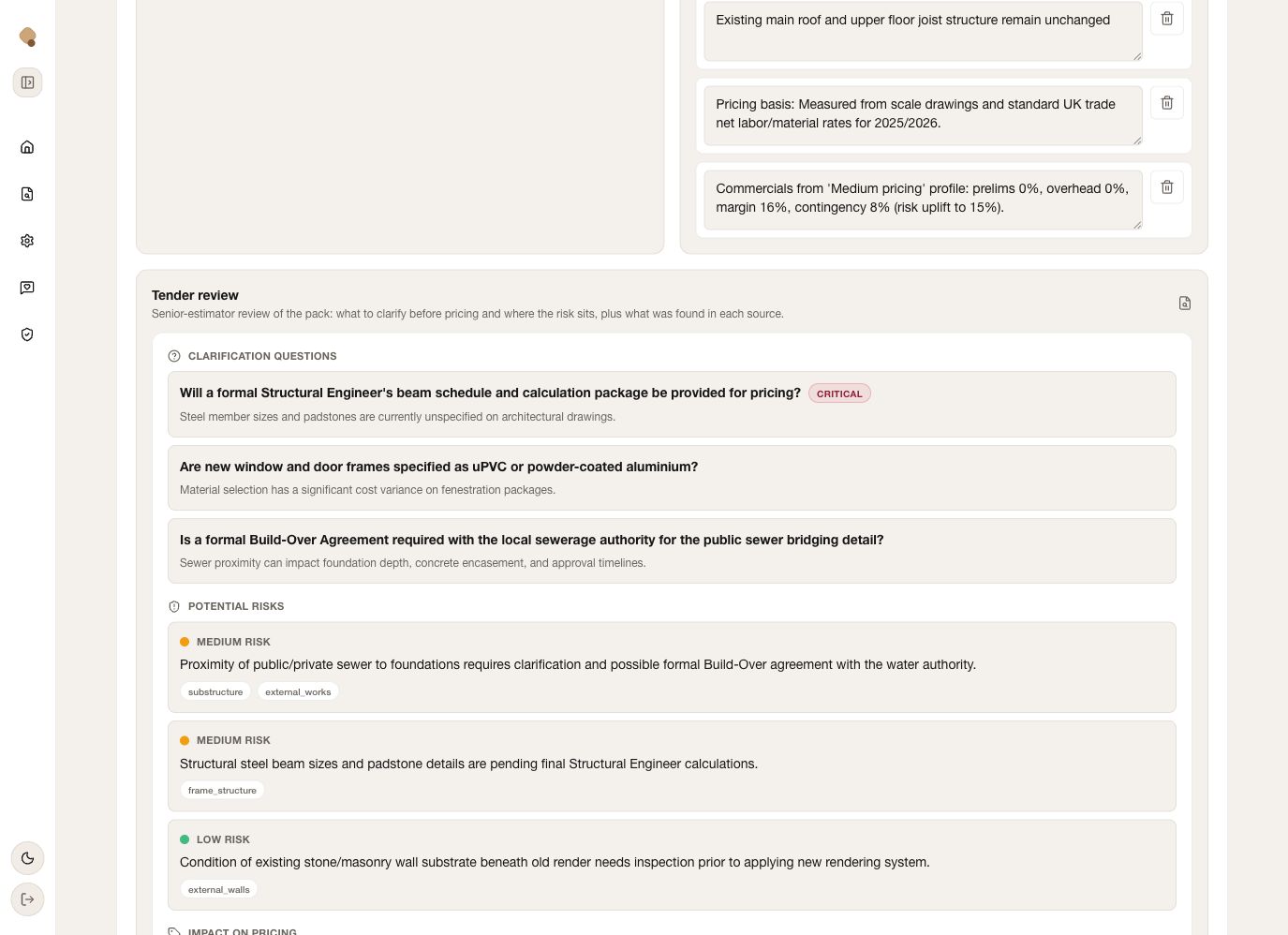
Quotify tender review showing clarification questions and potential risks 19 20
The tender review turns source gaps into specific questions, tagged risks and affected pricing areas.
  1. Review queue

    Work through every medium/high risk and check any reconciliation note between the declared and itemised totals. A cleared queue is stronger evidence than a green completeness badge.

  2. Assumptions

    Edit, add or remove assumptions so scope boundaries, pricing bases and provisional allowances are explicit. Keep them factual, specific and suitable for the intended report.

  3. Clarification questions

    Send critical questions—such as missing structural calculations—before hardening a price. Each question explains why the answer matters.

  4. Potential risks, pricing impact and source extraction

    Review risk level and affected categories, then compare the extracted source information against the drawings. This connects the commercial allowance back to its evidence.

04
Check the take off

Turn material allowances into buying evidence

Business value: exposes unpriced or weakly priced materials early, reducing supplier surprises and making purchasing handover faster.

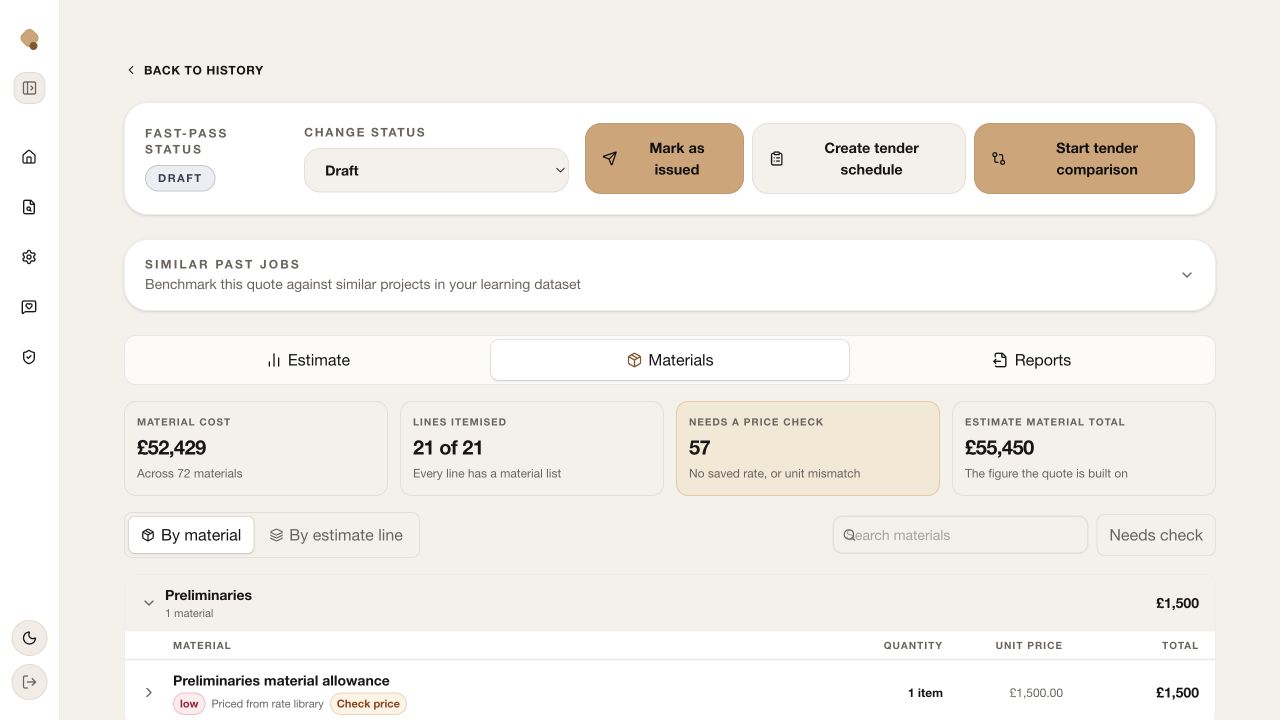
Quotify Materials tab with material summary cards, view controls and material rows 1 2 3 4
The summary shows both coverage and outstanding supplier-price work before you inspect individual materials.
  1. Material summary

    Compare material cost, itemised lines, “Needs a price check” and the estimate material total. A difference between the material list and estimate total signals allowances or aggregation that should be understood before issue.

  2. By material / By estimate line

    Use By material for a deduplicated buying list; use By estimate line when tracing a product back to the scope that created it.

  3. Search and Needs check

    Search by product or trade and filter to unverified prices. This is the fastest route to the supplier calls that can materially change the quote.

  4. Category and material rows

    Expand categories and read quantity, unit price, total, confidence and “Check price” indicators. Waste is already shown where applied, so confirm it is appropriate rather than adding it again.

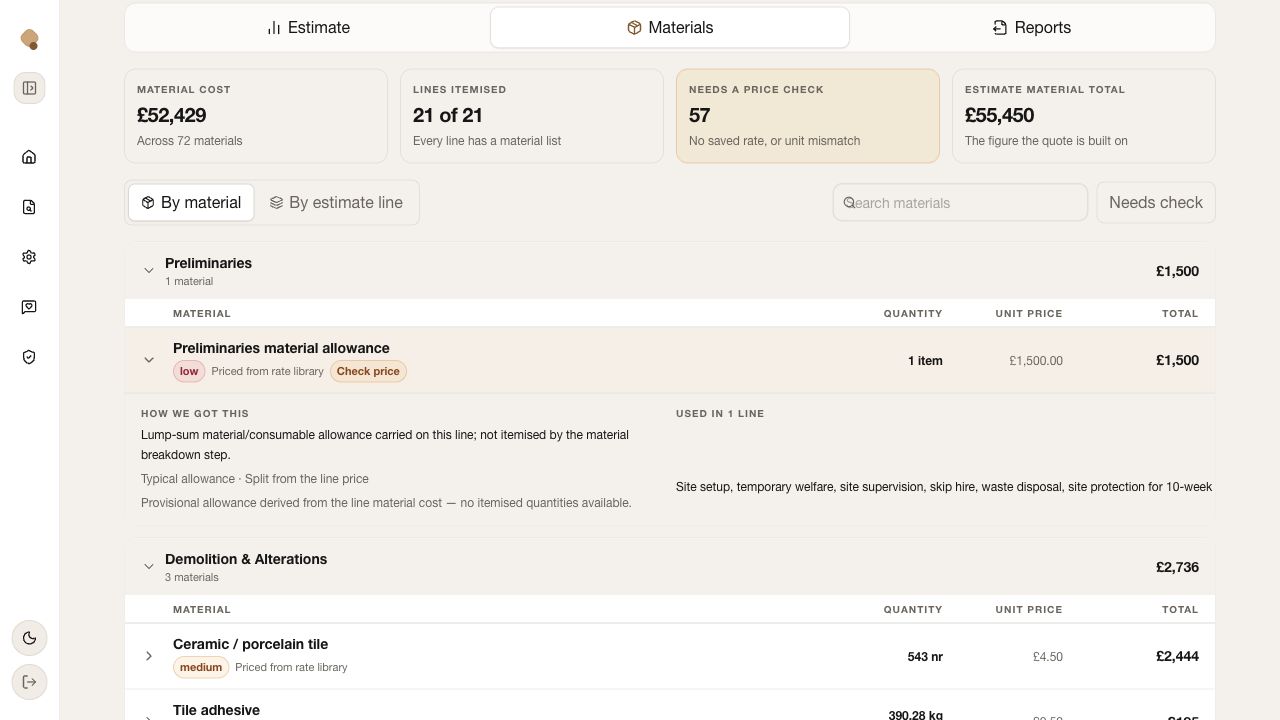
Expanded Quotify material row showing pricing basis and the estimate line where it is used 5 6
Expand a material to see why it exists and where the allowance came from.
  1. How we got this

    Explains whether the price came from a rate library, a typical allowance or a split from the estimate line. Treat provisional allowances as review prompts, not supplier quotes.

  2. Used in line

    Shows the originating estimate scope. Use this link between material and work item to catch duplication, missing quantities or products allocated to the wrong trade.

05
Build the output

Choose the report for the reader—not just the data

Business value: turns one checked estimate into the right level of commercial detail for a client, tender team, estimator or quantity surveyor.

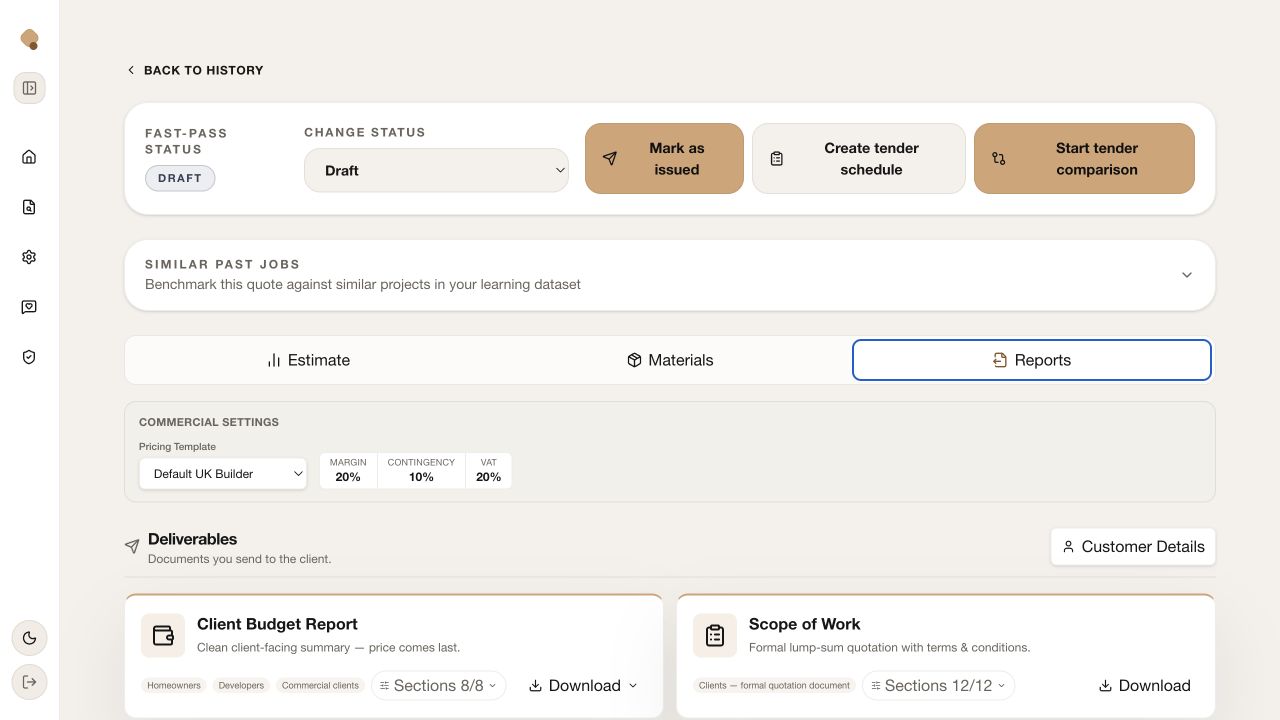
Reconcile the commercial basis before download.

In this example the Estimate view shows 16% margin and 15% contingency, while the Reports template shows 20% and 10%. Confirm which basis is intended before generating a document.

Quotify Reports tab with commercial settings, customer details and client deliverable cards 1 2 3 4
Set the commercial template, complete recipient details and select a client-facing deliverable.
  1. Pricing template

    Choose the template that matches the job type—UK Builder, UK Commercial, Healthcare/Dental or Residential Extension. Confirm its margin, contingency and VAT readout against the reviewed estimate.

  2. Commercial readout

    This is the basis the report will present. Treat any difference from the Estimate tab as a stop-and-check signal.

  3. Customer Details

    Add the customer name, address and cover message used in the Scope of Work document. Keep the wording professional and project-specific.

  4. Deliverables and sections

    Choose the report, tailor its included sections, then download. Client Budget Report is a plain-English summary; Scope of Work is the formal quotation; Priced BOQ supports tendering; Itemised Breakdown exposes trade rates and allowances.

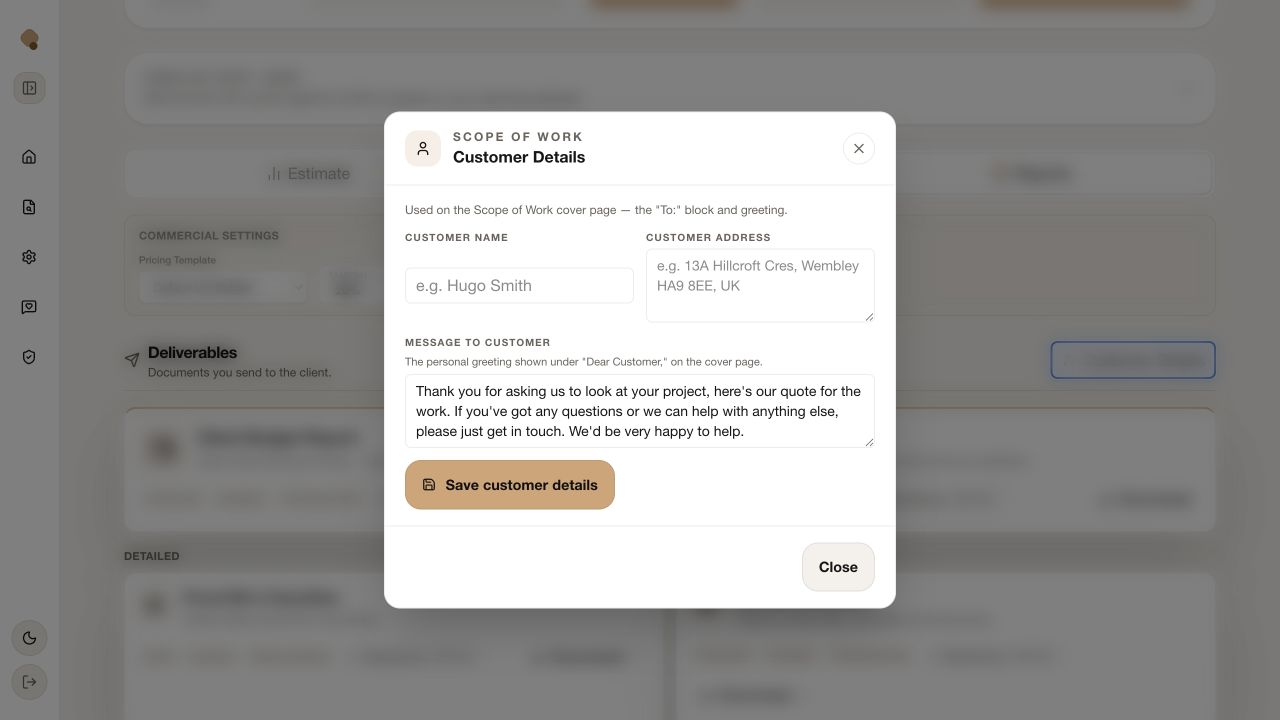
Customer Details dialog for a Quotify Scope of Work report 5
Customer details populate the Scope of Work cover and greeting.
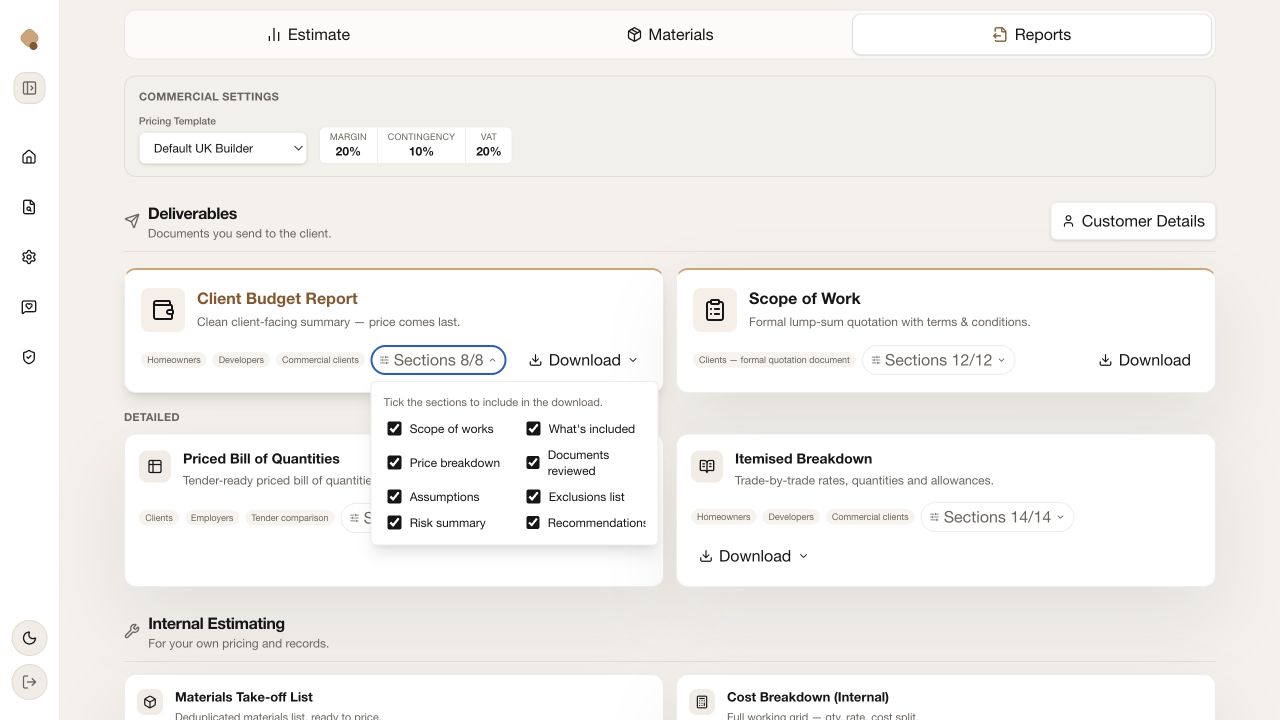
Quotify report section selector with eight checked sections 6
Include only the sections the reader needs, while retaining commercial essentials.
  1. Recipient and greeting

    Complete the “To” block and message, then save. This prevents a technically correct report from looking generic or being addressed to the wrong party.

  2. Section selector

    Tick scope, inclusions, price, documents, assumptions, exclusions, risk and recommendations as appropriate. Do not hide a material assumption or risk simply to make the report shorter.

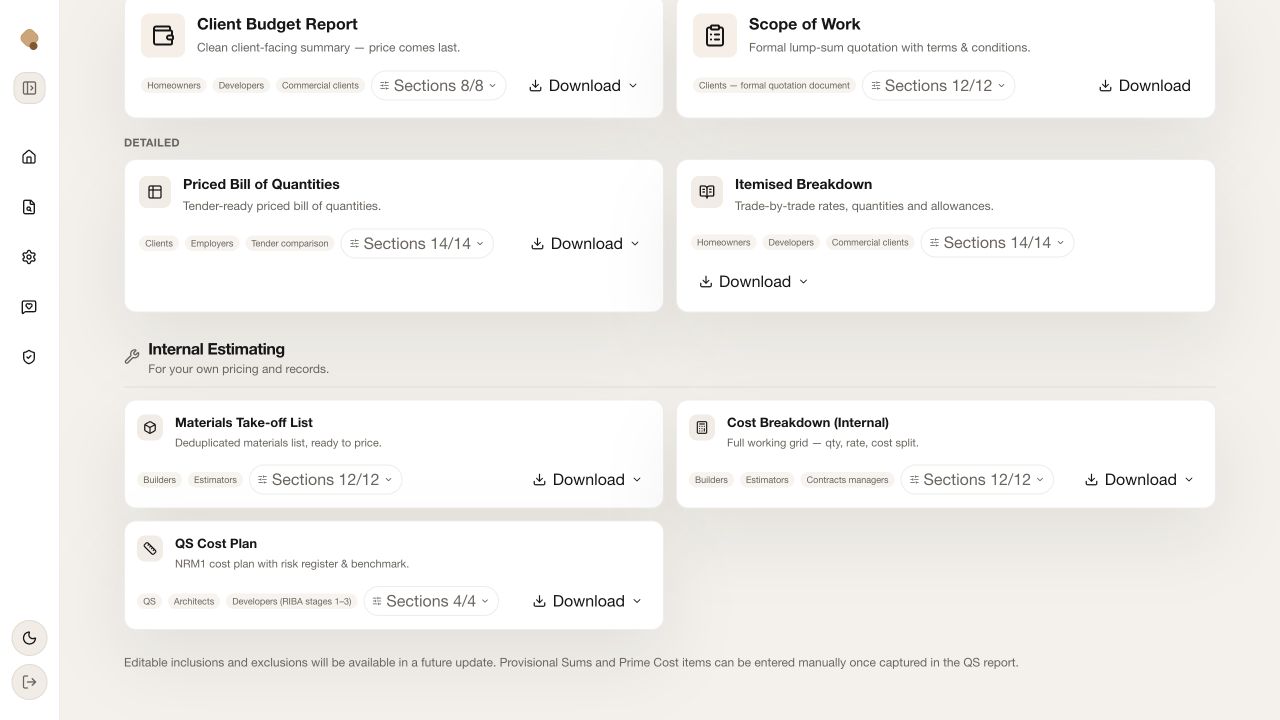
Quotify detailed and internal report options including Priced BOQ, Itemised Breakdown, Materials Take-off, Cost Breakdown and QS Cost Plan 7 8 9
Detailed and internal reports reuse the same reviewed estimate for different working audiences.
  1. Priced Bill of Quantities

    Use for tender-ready, employer-facing detail and confirm the commercial terms entered in the Estimate tab.

  2. Itemised Breakdown

    Use when a client or developer needs trade-by-trade quantities, rates and allowances.

  3. Internal Estimating reports

    Materials Take-off supports purchasing, Cost Breakdown preserves the full working grid, and QS Cost Plan provides an NRM1 view with risk and benchmark context. These are internal controls unless you intentionally share them.

Final gate

Before you mark the quote as issued

  • Correct drawings and revisions appear in the audit
  • Low-confidence and high-value lines have been checked
  • Labour, supplier rates and material quantities are current
  • Margin, contingency, VAT and report template agree
  • Risks, assumptions, exclusions and clarifications are explicit
  • Customer details and report sections suit the intended reader
  • The downloaded document has been opened and visually checked
  • The client-seen version is marked as issued after sending